

Uke n'Fret
Aliases:
Alt frets: Click
Click a button to generate the chart
This main screen offers several ways to find fingering diagrams.
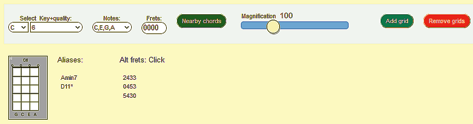
Select key+chord, quality, or fret numbers to get its chord fingering diagram.
Nearby chords button adds diagrams for chords adjacent to the current selection.
Magnification changes size of the diagram.
Add grid button keeps current diagram and opens a new one. You can drag diagrams to change their sequence or click "X" (upper-left corner) to remove one.
Remove grid button removes grids for all but the current selection.
Aliases list shows other names for this same chord (if any).
Alt frets lists other frettings for the same chord. Click one to see its diagram.
You can create printable chord charts in several formats. These charts conform to your current selection filters.

Chord Chart is a compact format, with one row for each root note. Columns show the first finger placement for each chord type.
Chord Variations shows nearby chords related to each major chord.
Chord Encyclopedia shows various ways you can voice each chord.
Shape Dictionary illustrates movable patterns to voice each chord quality.
Erase Chart clears the current chart from your screen.
The variety and voicings for chords can be overwhelming. Uke n'Fret offers many filters to limit which chords and frettings you want to see. You can also customize many aspects of the selections and diagram displays.
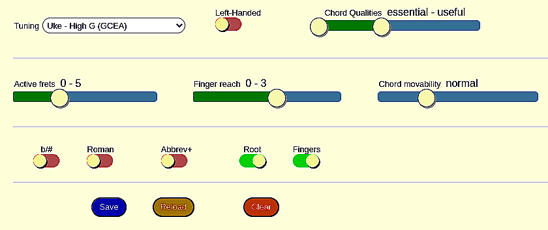
Tuning allows choices of instrument and tuning for ukes and other 4-string fretted instruments. If your isn't here, please let me know and I'll try to add it.
Left-Handed shows the frettings for instruments strung left-handed .
Chord Qualities lets you limit the types of chords you will see. The assignment to levels is somewhat arbitrary, but more commonly-used chords generally appear in the lower levels. This control is a range slider, so you can adjust both the low and high limits, as appropriate for your skill level or learning needs.
Active frets limits how high up the neck you want to go. With "movable only" chord patterns, you can also limit the lowest fret you want to play.
Finger reach lets you set how many frets at a time your fingers can reach.
Chord movability restricts the fretting patterns you'll see:
b/# alternates the notation for half-tones between flats and sharps. Sorry; this is an all-or-nothing choice at any given time but it's easy to switch.
Roman controls whether string annotation shows the note value or a Roman scale notation.
Abbrev+ lets you select from additional abbreviatons for the chord qualities.
Root highlights in red the string(s) playing the root note of the chord. (Does not work currently for open strings.)
Fingers adds suggestions for which finger to place on each string. It includes suggested bars. Not all frettings have suggestions, and you may prefer something different. Feedback appreciated!
The Save button remembers your current settings for future use.
The Reload button restores your saved settings.
The Clear button erases your saved setting and returns all options to their default values. It could be helpful if the display gets weird.
The fingering diagrams contain a lot of information. Here's how to interpret them.
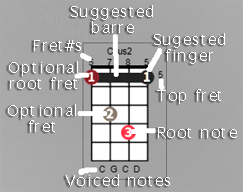
Dots represent finger placements.
A number inside a dot suggests which finger to use. A solid horizontal line is a suggested barre:
Dot colors give additional detail.
Numbers above the grid indicate the fret position for each string. 0 represents an open string; X represents a muted string. Annotation under the grid identifies the note sounded by each string.
A number to the right of the grid indicates the top fret (if it is not 1).
Type shift+click on any interactive grid to hear that chord played.